How to Combine Illustration and Typography Without Letting Them Compete
Illustration and typography should not receive equal billing by default. Decide whether the art leads, the type leads or both elements form one inseparable composition. Then make scale, contrast, position and detail support that decision. Without a leader, even attractive ingredients can produce a layout that feels like two posters arguing over the same wall.
The choice is aesthetic, but the test is practical: can someone identify the message, understand the reading order and recognize the image at the intended size? A theatrical event poster can reward a slow reveal. A mobile promotion, package label or card has much less patience available. Design for that actual encounter, not for a luxurious zoomed-in canvas.
Choose one of three relationships first
Before adjusting fonts or nudging objects, write down the communication job. What must the viewer notice first, and what should happen next? That answer usually points to one of three relationships.
1. Illustration is the hero
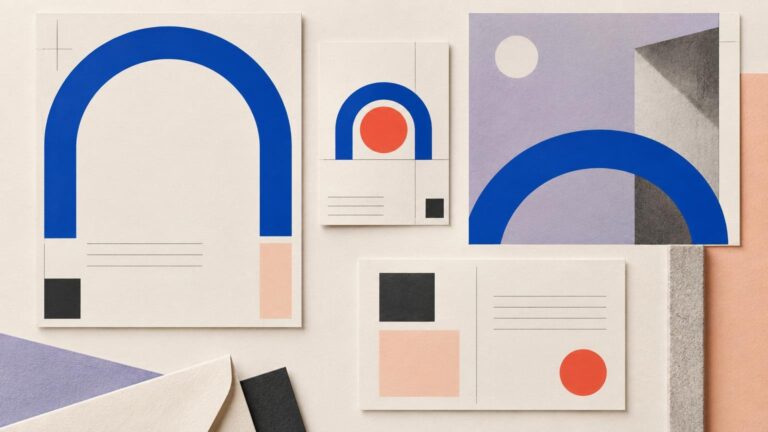
Let the image lead when recognition, atmosphere or character carries the message. This suits book covers, editorial features, cultural posters and packaging in which the illustration creates the immediate desire to look. Typography should provide orientation without trying to reproduce every expressive move in the artwork.
A practical setup is one dominant illustration, one compact headline zone and a quiet information tier. If the artwork has energetic contours, use a typeface with a stable silhouette rather than another highly decorative voice. You are not required to make the lettering boring; it simply needs fewer gestures. Reduce its number of weights, colors, angles or effects until the picture regains authority.
The sacrifice is typographic spectacle. Accept it. When the image is the reason people stop, turning every letter into an event only dilutes the event already happening.
2. Typography is the hero
Let type lead when the exact phrase, name, date or call to action is the communication. The illustration can frame the words, direct attention toward them or establish tone. It should not interrupt the critical letterforms merely because an overlap looked lively at 300% magnification.
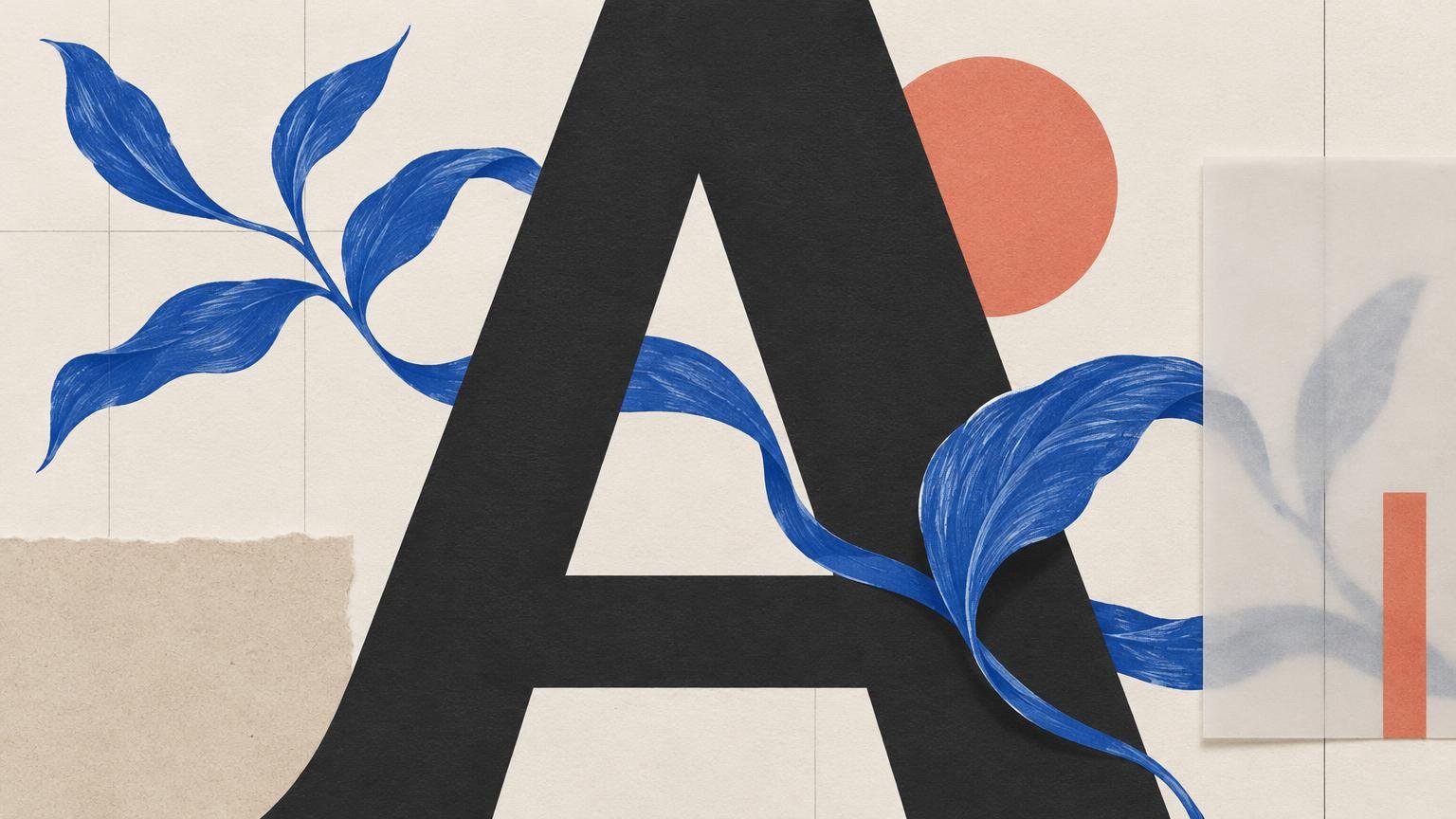
Start with the headline as a shape. Establish its line breaks, width and dominant rhythm before drawing around it. Place illustrative detail in counters, margins or negative spaces only where it preserves recognition. If a leaf crosses one stem of a large display letter, the interaction may feel deliberate. If foliage crosses five different letters at their most distinctive points, the viewer is being assigned unpaid archaeology.
This approach sacrifices some illustrative freedom because the available shapes and focal points must respond to the words. That constraint is useful: it turns decoration into direction.
3. Type and image form one composition
The third option is not “make both equally loud.” It is to build a shared structure. Letterforms may follow an illustrated contour, objects may pass selectively in front of and behind a headline, or repeated shapes may connect the two systems. The result should look difficult to separate, yet remain easy to read.
This is the most demanding relationship because every interaction matters. Use one strong integrating device rather than a collection of tricks. A single controlled weave between a word and a ribbon can establish depth. Adding shadows, outlines, textures, warped baselines and six more overlaps does not deepen the idea; it merely documents access to the Effects menu.
Build hierarchy before adding interaction
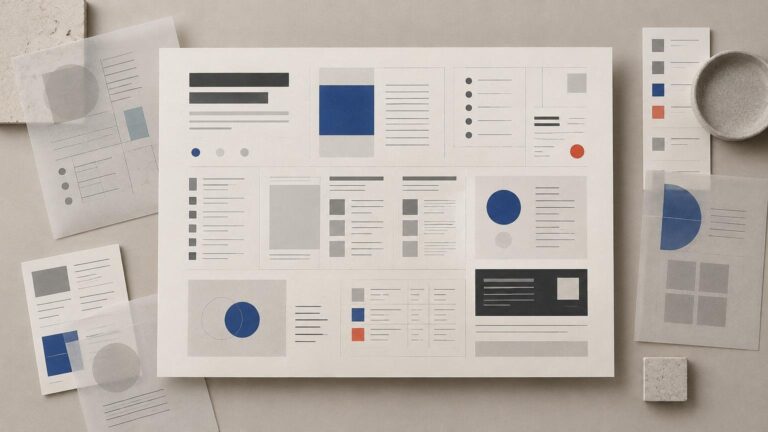
Reduce the layout to grayscale boxes: one for the headline, one for the image, one for supporting copy and one for the action or essential detail. Arrange those boxes until the reading order works without style. If the composition needs color, texture and clever masking just to explain what comes first, its hierarchy is not ready.
Use scale to establish the first distinction, then reinforce it with contrast and space. Avoid making every element large, saturated and centered. A layout does not gain hierarchy merely because one object is three pixels bigger than another.
Color should separate roles as well as create mood. For example, a restrained illustration can support a saturated headline, while dark type can stabilize a colorful image. If the palette is becoming difficult to control, revisit the relationships among dominant, supporting and accent colors rather than adding another emergency swatch. The principles in this practical color-wheel guide provide a useful starting point.
Use overlap as syntax, not decoration
Overlap tells the viewer how objects relate in space. A character passing in front of one part of a headline and behind another can join image and type convincingly. Randomly hiding letters simply announces that two layers occupy the same coordinates.
Protect the identifying features of each letter. Cross a long vertical stroke before covering a compact counter or the joint that distinguishes one character from another. Keep essential words more intact than secondary words. Then test the headline without contextual clues: if a colleague could plausibly read a different word, the overlap has taken too much.
Adobe Illustrator’s Intertwine feature can create editable interwoven groups from overlapping text and shapes, although it does not support every object type or nested intertwines. That makes it useful for exploring front-and-back relationships without immediately cutting artwork into fragments. The tool can execute the weave; it cannot decide whether the weave improves the message.
Control the boundary between art and copy
Longer copy needs a calm reading area. Do not force every paragraph to imitate the illustration’s silhouette. A contour wrap can work around one simple object, but aggressive wrapping creates erratic line lengths and distracting gaps. InDesign can wrap text around a bounding box or object contour and provides offsets to control the space between object and copy. Illustrator also supports wrapping area type around objects when the text and wrap object follow its required layer order.
Treat the offset as part of the composition. Too little space makes type look trapped against the image; too much creates an accidental moat. Judge the gap optically, because a sharp illustrated point and a rounded form can look unequally spaced even when the numerical offset matches.
For responsive interfaces, preserve the relationship without freezing one fragile arrangement. Figma Auto Layout can control direction, padding, spacing and alignment as content changes, but fixed-size text boxes can overlap in fluid frames. Design a deliberate small-screen state instead of hoping the desktop composition politely folds itself.
Make text legible over variable artwork
Text over illustration often fails because designers evaluate an average background color instead of the color directly behind each letter. Check the lightest and darkest areas the text crosses. For web content, the W3C explanation of minimum contrast specifies at least 4.5:1 for normal text and 3:1 for large text at WCAG Level AA; thin or unusual letterforms can appear weaker in practice because of anti-aliasing. These are accessibility thresholds, not instructions to make every composition visually identical.
If contrast varies, move the text into calmer negative space, simplify the illustration beneath it or add a controlled shaded field or halo. W3C identifies a halo or shaded area behind text as one way to preserve contrast over variable backgrounds. I would usually try repositioning and simplification before applying a heavy shadow. A shadow should solve an edge problem, not become a second typeface.
Keep important digital text as real text when possible rather than baking it into the illustration. W3C advises avoiding images of text where possible and calls for equivalent text alternatives when images of text are used. Informative illustrations also need alternatives that communicate their essential information, while decorative images can use null alternative text. W3C’s image accessibility tutorial explains those distinctions.
Test the composition in its real format
A combined layout should survive conditions that remove the designer’s favorite advantages. Test it at final size, briefly, in grayscale and with realistic content. Each test exposes a different weakness.
- Shrink the design to its actual viewing size. If small details merge into grit, simplify them rather than sharpening everything.
- Look for two seconds, then state what you noticed first and second. If that order contradicts the brief, adjust scale or contrast.
- Convert a duplicate to grayscale. This reveals whether color has been disguising weak value hierarchy.
- Replace short placeholder copy with plausible long copy. Watch for broken wraps, crowded labels and unintended line breaks.
- Remove either the type or illustration temporarily. The remaining element should reveal whether the supporting role is genuinely supporting or merely competing.
- For print, inspect a physical-size proof rather than judging only on screen. For digital work, test narrow and wide states instead of one ideal frame.
Before commercial print output, Adobe recommends resolving missing fonts, overset text and low-resolution images, identifying images below 300 ppi as critical in its InDesign print-ready PDF guidance. A composite proof can also expose overall layout and image-resolution problems before final output. If the palette relies on brilliant screen color, account for the output process early; this guide to why bright RGB colors can look duller in print explains the design consequences.
Use artwork and fonts you can actually publish
A visually coherent composition is not automatically a usable one. Work with original illustration or assets licensed for the intended application, and verify font permissions for delivery, embedding and production. The U.S. Copyright Office’s guidance for visual artists notes that illustrations and other graphic artwork can receive copyright protection when fixed in a tangible medium; protected uses generally require permission unless an exception applies. Stock-asset rights also depend on the applicable license and asset designation.
Do not wait until the final export to discover that a commissioned layout contains an unlicensed sample image or a font file that cannot be passed to another party. Adobe notes that font licenses vary and that Adobe Fonts files cannot simply be copied or moved; it describes PDF as generally the most reliable way to preserve typographic fidelity when printing existing content. Licensing is not the glamorous part of integration, but neither is rebuilding the headline at midnight.
A decisive final review
Ask three questions. What leads? What supports it? What specific device connects them? If the answers are “everything,” “everything” and “lots of effects,” edit again.
When the illustration leads, simplify the typographic voice and protect a clear information zone. When typography leads, compose the image around the phrase and keep critical letterforms intact. When both form one composition, choose a single structural relationship—shared contour, controlled overlap, repeated shape or aligned rhythm—and make it convincing.
Type and illustration need a relationship, not merely proximity. Decide who leads, make the other element support that decision, and test the result where people will actually encounter it. That is how two expressive systems become one clear layout.
Frequently Asked Questions
How do I decide whether illustration or typography should lead?
Identify what the viewer must notice first. Let the illustration lead when image, atmosphere or character carries the message; let type lead when the exact phrase, name, date or action matters most. If neither can be separated, connect them with one clear structural device rather than making both equally loud.
How can type overlap an illustration without becoming unreadable?
Protect the features that identify each letter, especially counters and distinctive joints. Keep essential words more intact than supporting words, then test the headline without contextual clues; if it can plausibly be read as something else, the overlap has taken too much.
What contrast does text over artwork need on the web?
At WCAG Level AA, normal text requires at least a 4.5:1 contrast ratio and large text requires 3:1. Check the background directly behind the letters, not its average color, and remember that thin or unusual forms can appear weaker in practice.
How should an integrated type-and-image layout adapt to mobile screens?
Design a deliberate small-screen state instead of shrinking or folding the desktop arrangement and hoping for elegance. Figma Auto Layout can manage direction, padding, spacing and alignment as content changes, but fixed-size text boxes can overlap in fluid frames.
Can I use any illustration or font in a finished layout?
No. Use original artwork or assets licensed for the intended application, and verify the font permissions required for delivery, embedding and production. Illustrations can receive copyright protection, while font licenses vary and Adobe Fonts files cannot simply be copied or moved.
References
- Intertwine objects in Illustrator | Illustrator
- Apply text wrap in InDesign | InDesign
- Wrap and unwrap text around objects in Illustrator | Illustrator
- Guide to auto layout in Figma – Figma Learn – Help Center
- Understanding Success Criterion 1.4.3: Contrast (Minimum) | WAI | W3C
- G17: Ensuring that a contrast ratio of at least 7:1 exists between text (and images of text) and background behind the text | WAI | W3C
- Images Tutorial | Web Accessibility Initiative (WAI) | W3C
- Produce print-ready PDF files in InDesign | InDesign
- How to set up Illustrator files for printing | Illustrator
- What Visual and Graphic Artists Should Know about Copyright | U.S. Copyright Office
- License information and Terms of Use | Adobe Stock
- Packaging font files | Adobe Fonts