How to Design White Ink on Clear Material Without Losing the Effect
TLDR: Good white ink clear sticker design treats transparency as an active part of the composition. Use a full white underbase when color and readability must remain stable, selective white when only key elements need opacity, and no white only where the application surface is meant to show through. Test all three approaches on light, midtone and dark backgrounds before approving the design.
The central mistake in white ink clear sticker design is assuming that clear material behaves like white paper with the background removed. It does not. The bottle, window, laptop or package beneath the sticker becomes part of every unsupported color. If that surface is unpredictable, the design is unpredictable too.
My design judgment is simple: transparency has to perform a visible job. It can create a borderless mark, let product color participate in the composition or make secondary graphics appear to float. If it contributes nothing beyond the word “clear” in the specification, white vinyl will usually produce a cleaner and more dependable result.
What happens when clear stickers have no white ink?
Conventional process inks are not an opaque wall. On clear material, unsupported colors visually mix with whatever sits behind them. Pale colors can become weak, dark backgrounds can swallow detail, and a brand color can shift dramatically from one application surface to another. Even black may feel less solid than expected when printed without an opaque foundation.
White areas create a more obvious problem: a visually white object in the artwork does not necessarily become printed white ink. It may instead represent an unprinted area through which the substrate remains visible. Avery, for example, distinguishes between areas receiving white underprint and areas where clear film remains visible. It also notes that ordinary home inkjet printers do not print white ink on clear labels.
That means the first useful question is not “Do I like the transparent look?” It is “Which parts of this design are allowed to change with the background?” A decorative halo may be allowed to change. A warning, ingredient line, QR code or compact wordmark probably should not.
Choose among no white, full white and selective white
| White-ink strategy | What it does | Best use | Main sacrifice |
|---|---|---|---|
| No white | Lets the application surface influence the entire design | Tinted effects, subtle patterns and intentionally transparent graphics | Color, contrast and readability vary with the surface |
| Full white underbase | Places white beneath most or all printed artwork | Logos, small type and illustrations that must remain visually stable | Much of the transparent effect disappears |
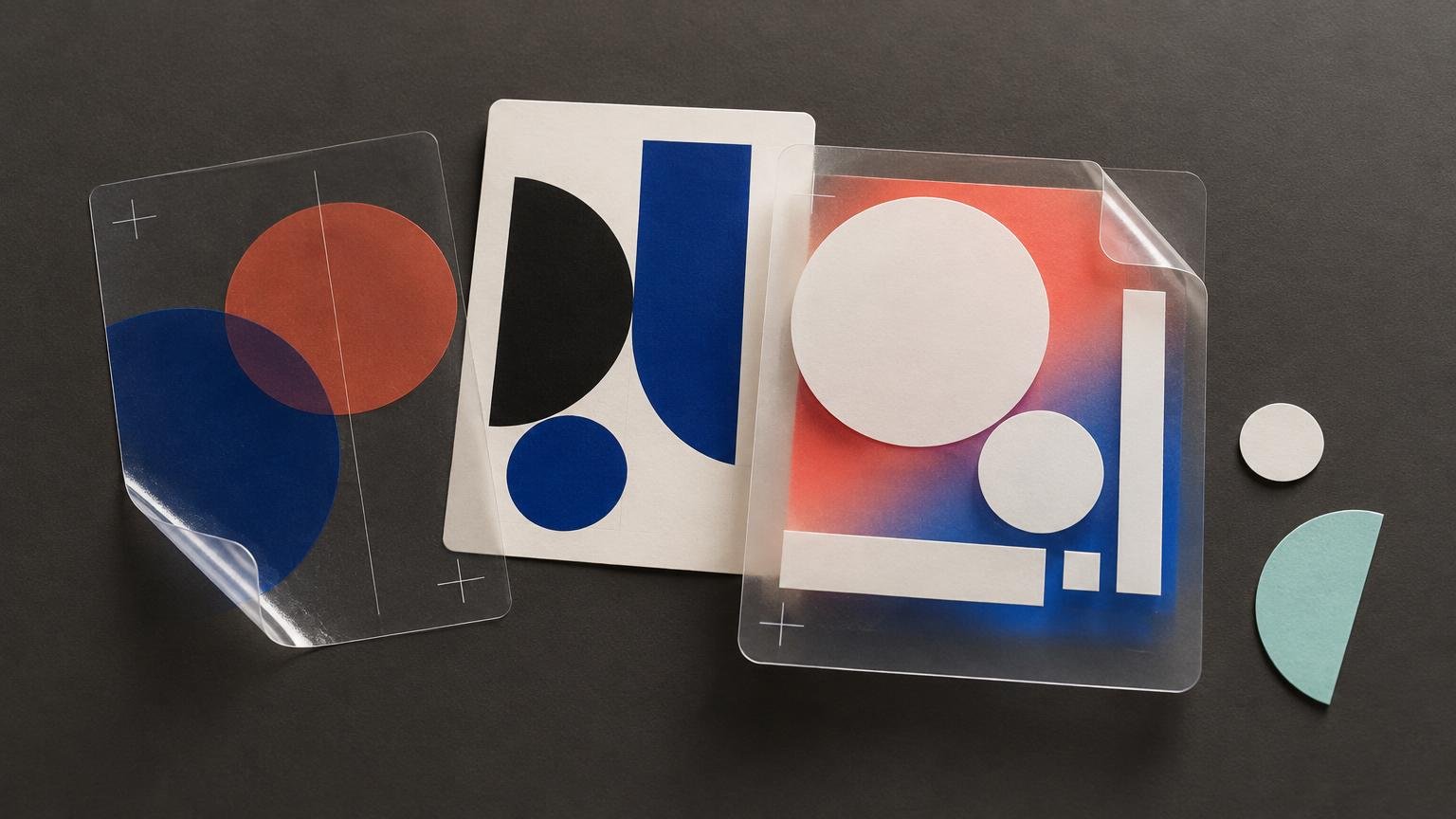
| Selective white | Supports chosen elements while leaving other areas transparent | Layered compositions with opaque focal points and clear negative space | Requires more careful separation setup and proofing |
| White vinyl | Provides an opaque white substrate from the start | Designs that gain nothing useful from transparency | No see-through areas |
Use a full white underbase for stability
A full underbase is the dependable option when the printed artwork must behave like artwork on white stock. Put it beneath hierarchy-critical elements: the main logo, small typography, essential product information, pale illustrations and colors whose identity matters.
The tradeoff is aesthetic, not mysterious. A broad white underbase turns much of the clear sticker into an opaque printed shape. That may be exactly right for a detailed mascot or tightly composed badge. It is less convincing when the concept depends on the object beneath the sticker remaining visible.
Do not automatically extend the underbase to the cut line. An opaque white silhouette around every element can make the design look like a conventional white sticker wearing a clear raincoat. Decide whether the white should follow the artwork, sit inside it or create an intentional border.
Use selective white as an opacity map
Selective white is usually the most interesting option because it lets hierarchy control opacity. Think of the white plate as a map of what must stay stable. Support the wordmark and essential type, perhaps give the focal illustration an opaque core, then leave atmosphere, texture or negative space unsupported.
For example, imagine a clear sticker for a sparkling drink. The brand name could sit over white for reliable contrast, while bubbles and radiating lines remain transparent so the drink color participates in the design. The surface is no longer an inconvenience; it has a defined role.
Printers can support this distinction between printed-white and transparent regions, but their setup requirements differ. One provider may request a named spot color, another a separate layer, and another may generate an underbase from supplied artwork. The existence of a selective-white workflow does not establish one universal file recipe.
Test the design against the real application surface
A clear sticker should never be judged only on a white artboard. That preview quietly supplies the background the physical sticker will not have. Build three quick mockups instead:
- A white background to reveal how the design looks in the most forgiving condition.
- A representative midtone or product color to expose unwanted hue shifts and weakened contrast.
- A near-black background to reveal disappearing type, pale colors and fragile edge details.
Inspect the smallest and most consequential elements first. Check legal or product information, fine counters inside letters, logo edges, QR codes and colors that carry meaning. Decorative texture can tolerate variation; information usually cannot.
If the sticker will appear on one known surface, design for that surface. Clear graphics applied only to a dark glass bottle can use the bottle as a planned background. If the same sticker may land on white mailers, silver laptops and bright packaging, support more of the design with white or choose white vinyl.
When moving from layout to ordering, compare the production options described in this guide to clear-background sticker printing choices. A provider offering custom sticker printing can be a practical next step once the artwork’s white-ink strategy and application surface are settled.
Treat inside-glass graphics as a separate production job
A face-applied sticker and an inside-glass decal are not interchangeable specifications. An inside-glass graphic is viewed through the glass, which may require reversed artwork and a different ink sequence. Clear window decals are offered with reverse-print applications, but the exact construction depends on the printer’s process.
Before building the production file, confirm the viewing side, adhesive side, whether artwork must be mirrored, where white sits in the ink order and which areas should remain transparent. Also ask whether the provider wants you to construct the white separation or generates it internally. Guessing the layer stack is a surprisingly efficient way to print a beautiful sticker backwards.
Proof the white-ink separation, not just the composite artwork
A polished composite preview can hide a broken white plate. Before release, inspect the process-color artwork and intended white separation independently. The white plate should contain only the objects requiring white ink. Transparent windows should be genuinely empty, and small supported elements should align with their color artwork.
Adobe documents separation and overprint preview tools in Illustrator for inspecting individual plates and overprint behavior. Use the official Illustrator color-separation guidance to locate and understand those controls in the current application. InDesign also provides separation and ink-coverage previews.
Pay particular attention to white objects with overprint enabled. Adobe warns that overprinting white can create output problems and distinguishes spot-white handling from ordinary white artwork. A white-filled shape is not automatically a valid instruction to print white ink; it must be prepared according to the printer’s specified workflow.
A useful preflight sequence is:
- Hide the process-color artwork and inspect the white separation by itself.
- Hide the white separation and confirm which colors are intentionally unsupported.
- Check transparent openings for stray white objects or accidental fills.
- Review overprint behavior and confirm that white objects are not disappearing from output.
- Compare the complete design against white, representative midtone and near-black backgrounds.
- Send the provider a screenshot or annotated proof showing the intended opaque and transparent areas.
- Request a physical proof when color stability, small text or a large production run makes the risk consequential.
Software preview is an inspection aid, not a physical simulation of every ink, film, adhesive and application surface. Provider confirmation matters because minimum line widths, trapping, choke, spread and acceptable file construction can vary. A physical proof is the more meaningful check when a subtle transparent effect has to survive production.
When white vinyl is the better design decision
Choose white vinyl when most of the artwork needs a white underbase, the sticker may be applied to unpredictable surfaces, or the transparent regions contribute no clear visual idea. This is not surrender. It is choosing a substrate that supports the communication job without unnecessary prepress gymnastics.
Clear stock earns its place when the underlying object becomes part of the composition: product color fills a transparent window, glass creates a floating effect, or selective white establishes a deliberate contrast between opaque and transparent layers. If viewers are merely supposed to ignore the background, give them a background you control.
Quick questions about white ink on clear stickers
Can white be printed on clear stickers?
Yes, commercial providers can print white ink or use white underprint on supported clear materials. Availability, opacity and file preparation depend on the selected provider and process.
Can I print clear stickers with white ink at home?
A typical home inkjet printer does not print white ink. Artwork containing white may leave that portion of clear media unprinted rather than producing opaque white. Specialized equipment is a different category, so check the actual printer and consumables rather than assuming white is available.
Does every printer use the same spot-white setup?
No. Spot-color naming, layer structure, bleed, minimum feature sizes, accepted formats and automatic underbase generation are production-specific. Follow the chosen printer’s current template or prepress instructions.
Do inside-glass decals need mirrored artwork?
They may, but do not mirror the file by default. Confirm how the decal will be printed, which side carries the adhesive and how it will be viewed. The provider should specify whether mirroring is required for its reverse-print process.
Make transparency earn its place
Use white ink to stabilize what must remain readable and recognizable. Withhold it where the surface beneath the sticker is intentionally invited into the design. Then test the result across realistic backgrounds and inspect the white plate separately before release.
The decisive question is not whether clear stickers look modern. It is whether the uncontrolled background improves the composition. If the answer is yes, selective white can create a result that opaque stock cannot. If the answer is no, choose white vinyl and let the design communicate without negotiating with every bottle, window and laptop it meets.
References
- White Ink, White Underprint on WePrint Sheets and Rolls | Avery
- White Ink Printing on Clear, Holographic & Metallic Stickers
- Custom Clear Window Decal Printing | Foamcoreprint.com
- How to print color separations in Illustrator | Illustrator
- Preview color separations in InDesign | InDesign
- White Overprint | Illustrator | Illustrator